

Creating Accessible PDFs for Canvas
Before You Use a PDF:
When possible, share your content directly in Canvas. It is often easier for students to navigate than a downloaded PDF. If you need to use a PDF, start by creating an accessible source document.
Create an Accessible PDF
To create or remediate a PDF file, follow the guidelines below to support digital accessibility.
Use Tags
Tags provide structure to a PDF's headings, lists, and reading order so screen readers can correctly interpret the content. Without tags, a PDF may not be readable or navigable for students using assistive technologies.
To learn more about how tagging works and how to review it in Adobe Acrobat, see the tutorial Reordering Tools. You can also visit our Adobe Acrobat page for additional resources on making your Adobe documents accessible.
Save Correctly
To preserve accessibility features when saving a PDF:
- Select Save As PDF or Export to PDF. Do not choose Print to PDF.
- Preserve document structure tags when prompted to maintain headings, links, and reading order.
Check Accessibility Before (and After) Uploading to Canvas
Use Adobe Acrobat Before Uploading
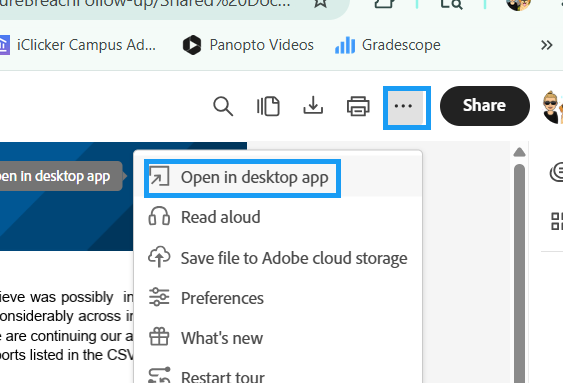
1. Be sure to open the PDF in the desktop app.
Note: Accessibility checking tools are not available in the web version of Adobe Acrobat.
2. Select All Tools in the top-left corner.
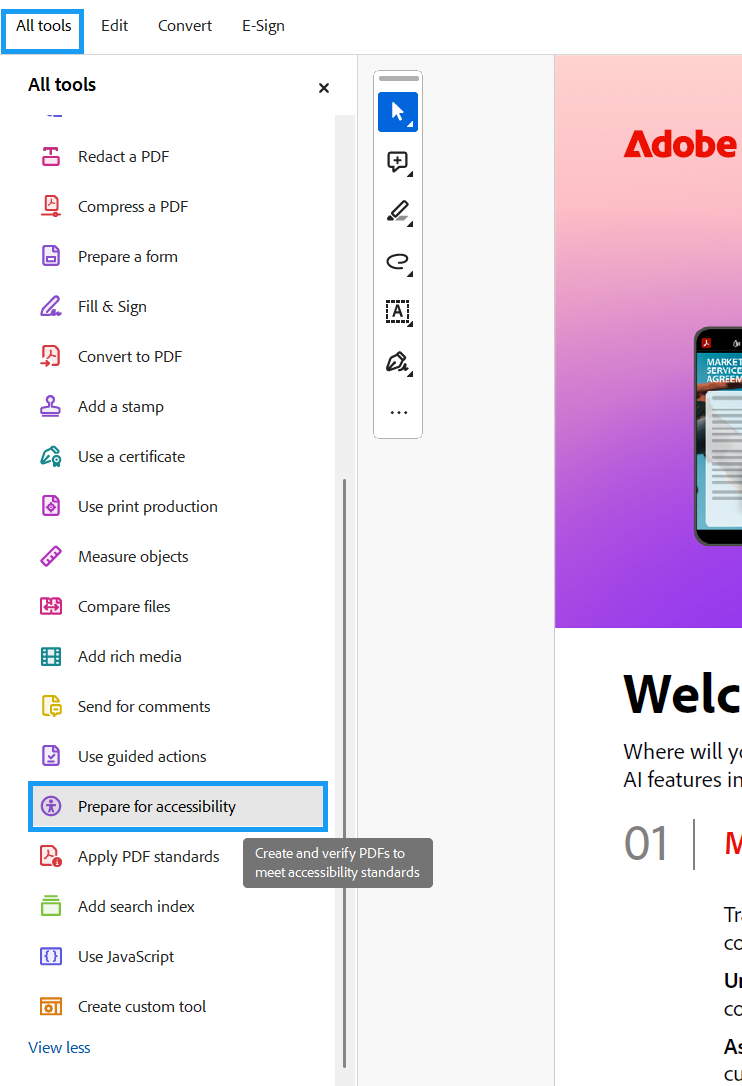
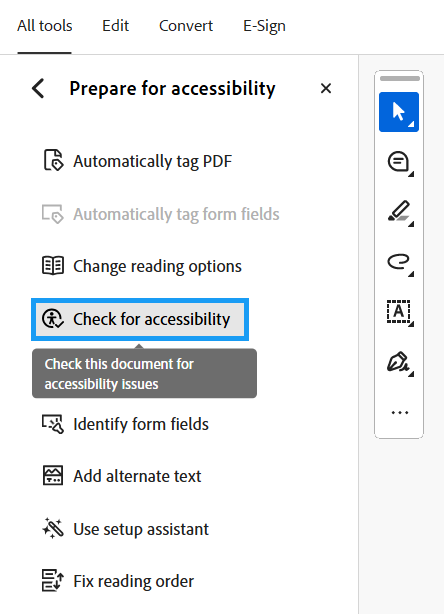
3. Select Prepare for Accessibility (may also appear as Accessibility Tools).
4. Select Check for Accessibility from the new list of items that appear.
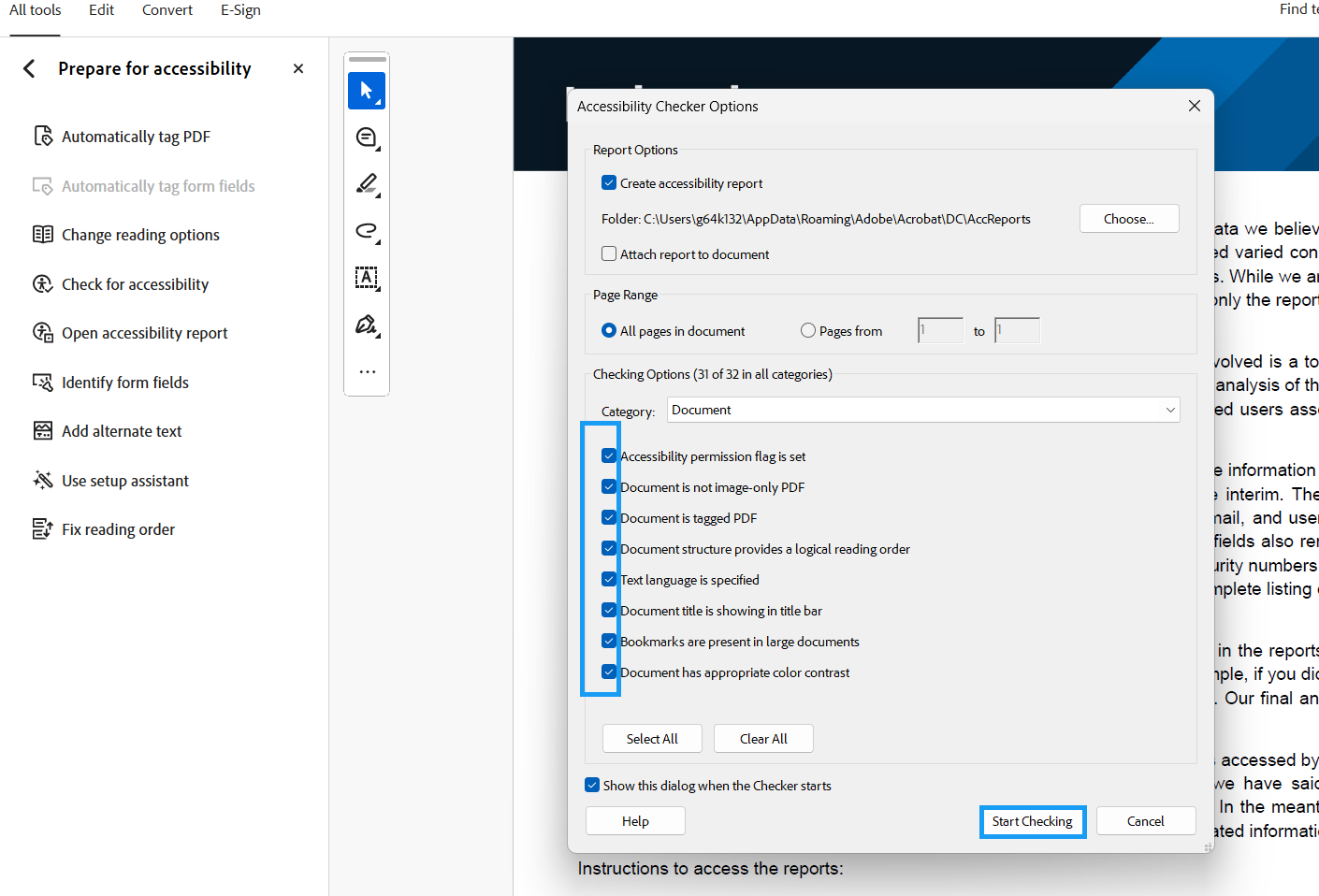
5. Choose the accessibility items you want to check for, and then select Start Checking.
6. Review the results panel that appears on the right. You’ll see items that have Passed and items that have Failed. Review the Failed items and make the suggested changes.
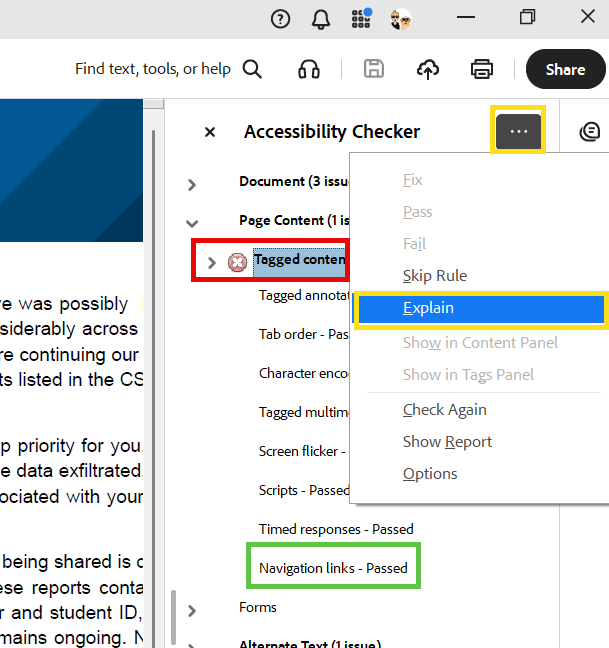
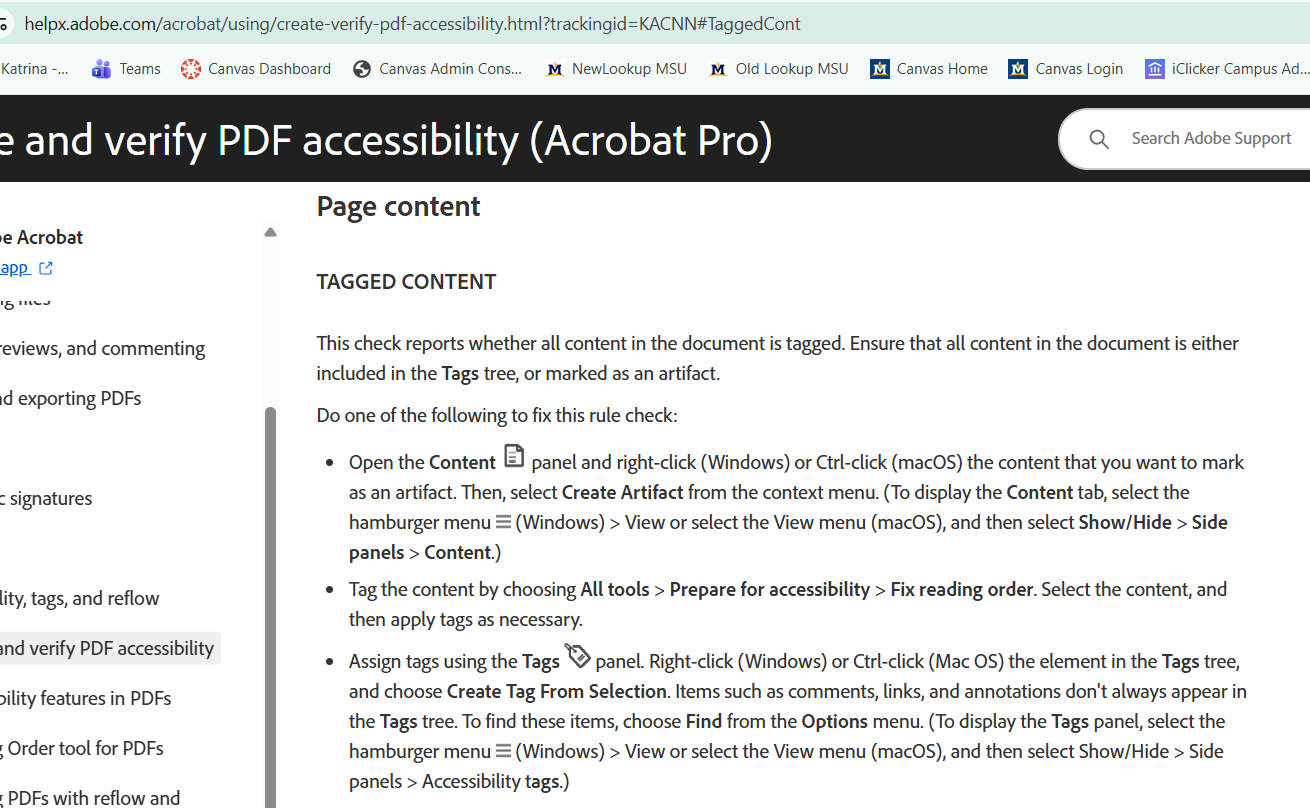
7. If you’re unsure how to fix an issue, click the three dots in the top-right corner of the report and select Explain. This will open an Adobe resource with additional information and steps for resolving the issue.
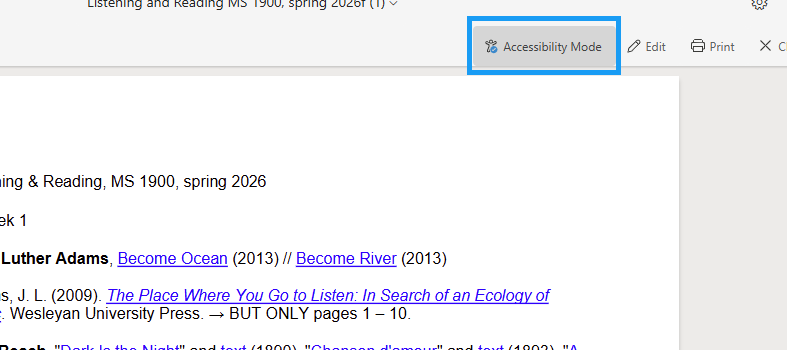
Important: If you see Adobe’s Accessibility Mode option near the top of the document, know that it does not check, fix, or remediate accessibility issues within the PDF itself. It only changes how the file is displayed and experienced for the individual viewer. To actually check and remediate accessibility issues, use the steps above.
Use YuJa Panorama After Uploading to Canvas
With YuJa Panorama, you can:
- View accessibility issues
- Fix scanned PDFs
- Enable alternative formats for students
If a PDF is difficult to make accessible:
- Consider using a Canvas Page instead
- Upload a Word version
- Contact us for support
- Use Adobe Acrobat features to fix issues
Need Help?
- Email University Information Technology (UIT) for Microsoft and Adobe accessibility tools
- Visit the Center for Faculty Excellence (CFE) Webpage for guidance on developing accessible course materials and professional development for inclusive teaching and learning
- Email the ECAT Team in Academic Technology and Outreach (ATO) for assistance with accessibility in Canvas using YuJa Panorama