

Phase 2: Align Outcomes to Assignments
Outcome data in Insights is generated when Outcomes are attached to a rubric and assessed during grading.
Attach a Rubric to a Graded Activity
- Open or create a graded activity (assignment, discussion, or quiz).
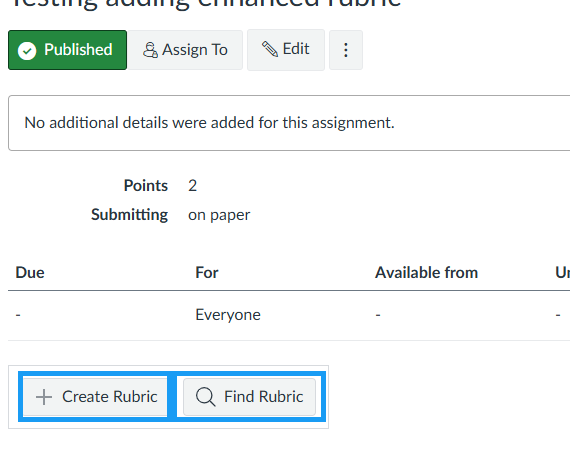
- Click + Create Rubric or Find Rubric at the bottom of an assignment or quiz.
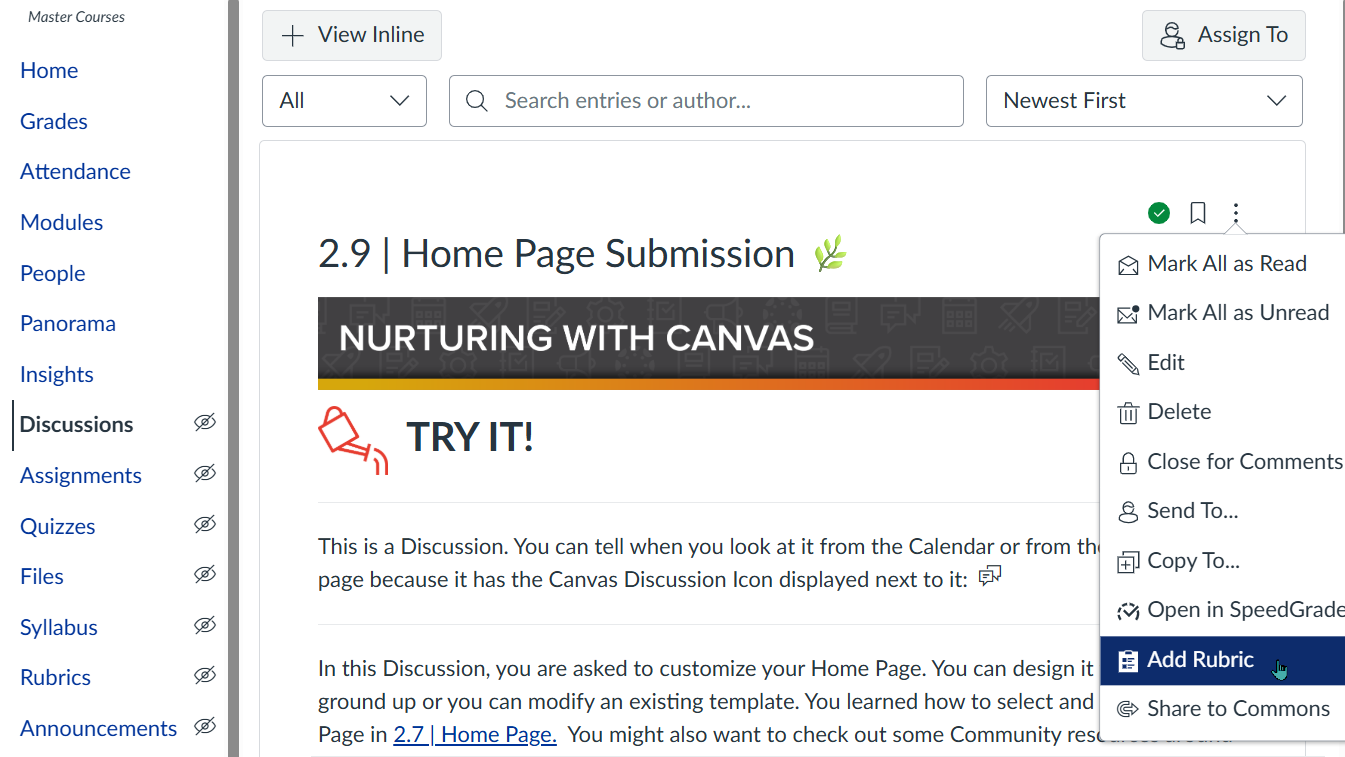
For discussions, open the individual discussion first, then select the three dots menu and choose Add Rubric. Do not use the three dots menu from the main Discussions page.
Rubric options:
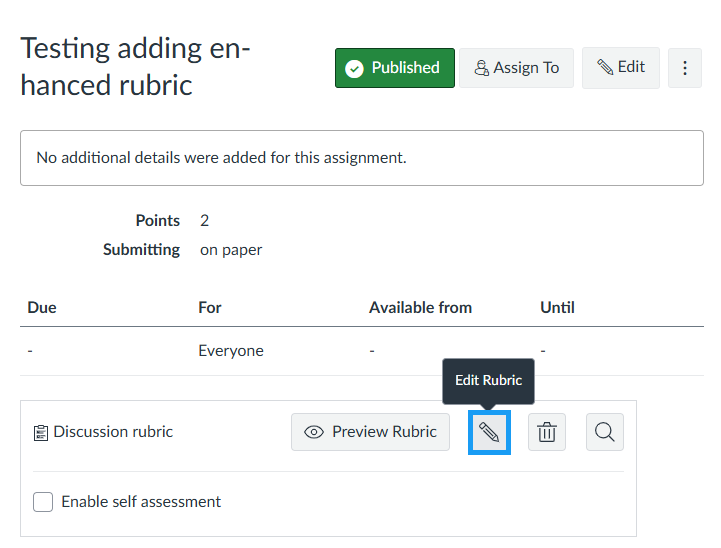
- Once the rubric is attached, select the Edit Rubric button (pencil icon) to edit the rubric.
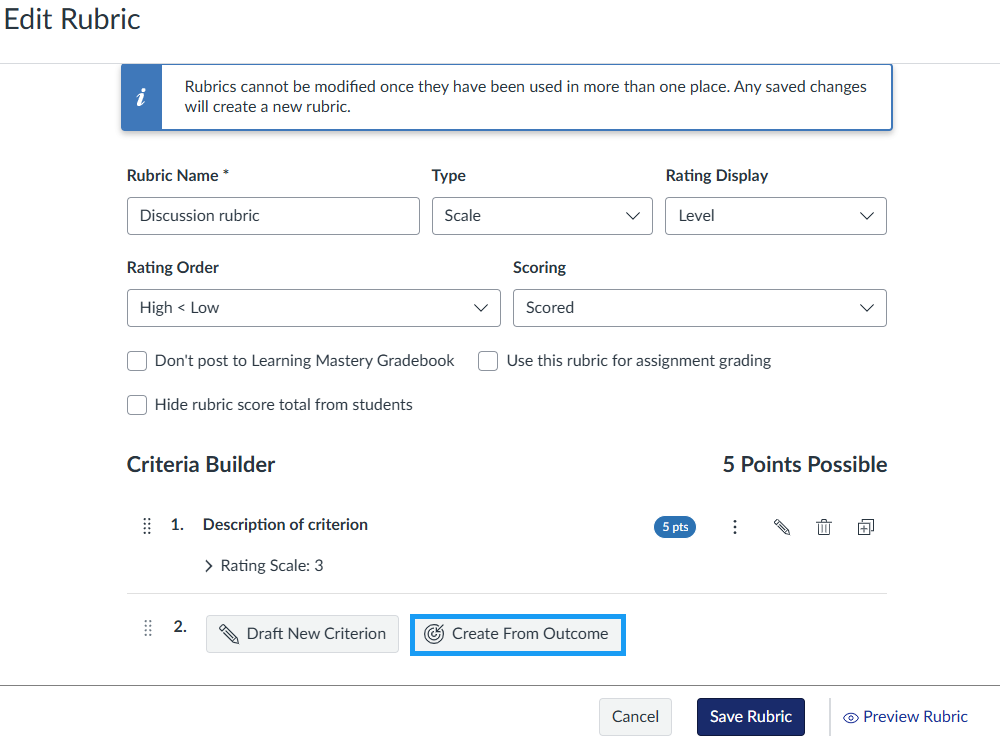
- In the Edit Rubric window, go to the Criteria Builder section and select Create From Outcome.
- Select the appropriate outcome(s), then choose whether to enable Use this criterion for scoring.
-
- When enabled, the outcome affects the assignment grade; when disabled, it is recorded for reporting only.
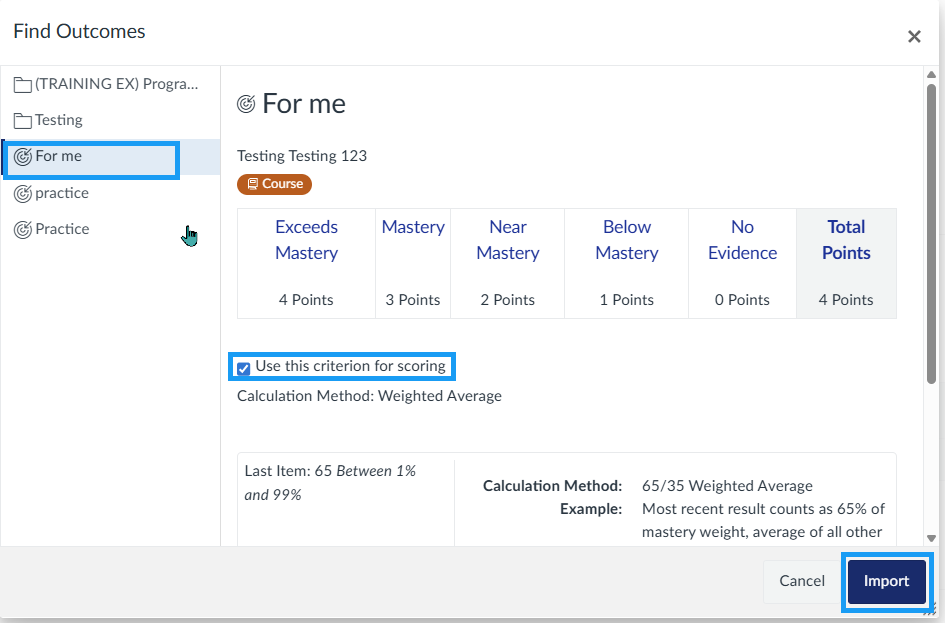
- Click Import to add the outcome. Repeat these steps as needed.
- Before saving the rubric, review the grading options at the top of the Edit Rubric window.
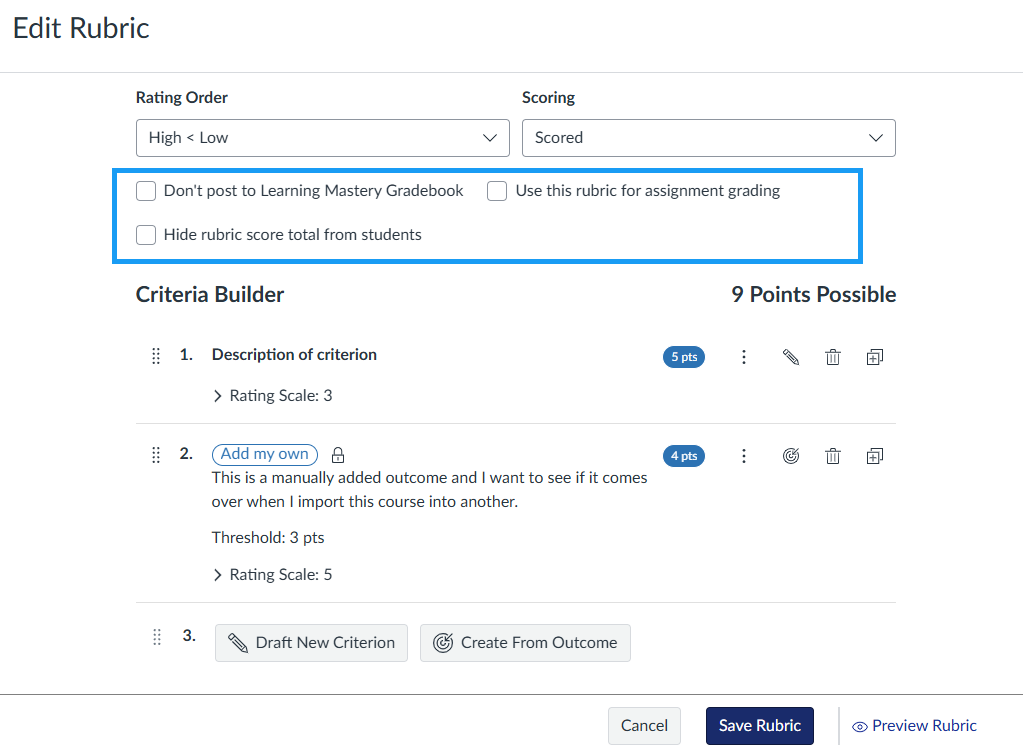
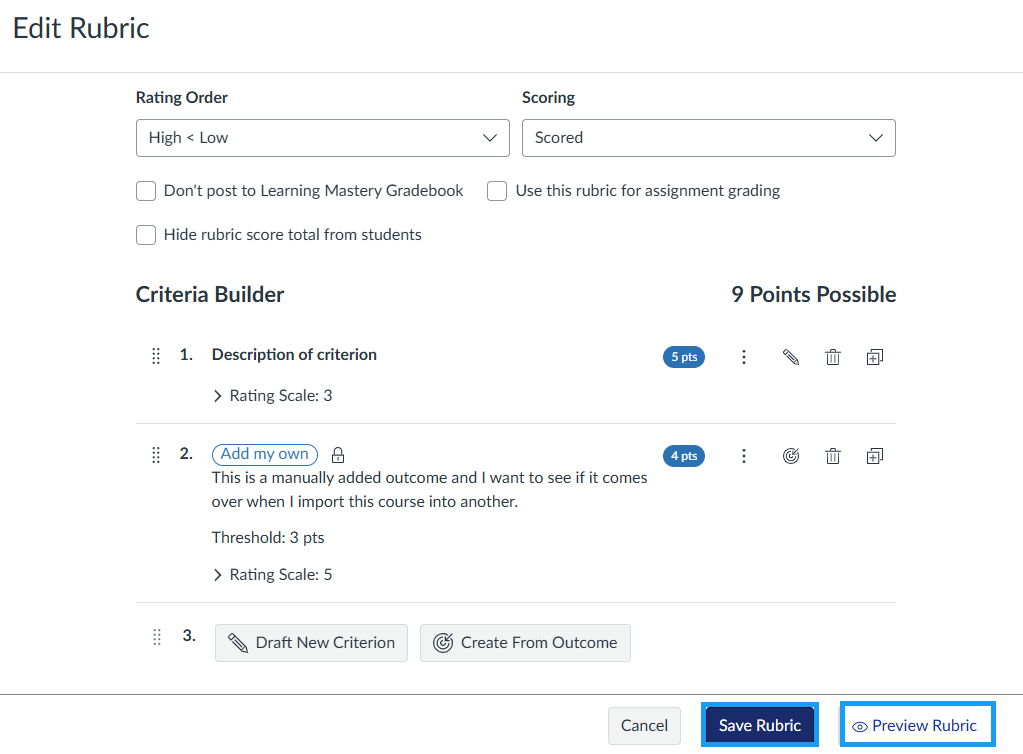
- When you are finished adding outcomes and selecting options, select Save Rubric to save your changes or Preview Rubric to review the rubric before saving.
- Ensure the assignment is published.
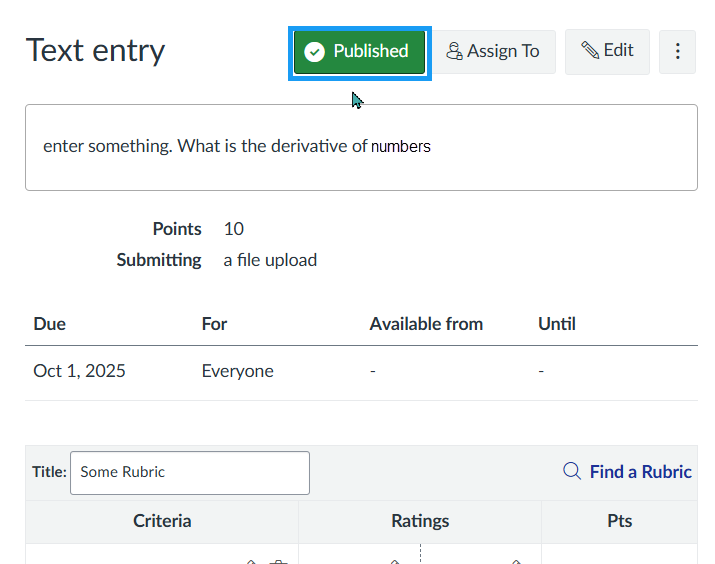
⚠ Outcomes only generate data when assessed in SpeedGrader using a rubric attached to a graded assignment.