

- Canvas
- Help
- Instructors
- Creating a New Quiz
How do I create or edit a quiz using New Quizzes?

New Quizzes is Canvas's assessment tool for creating quizzes, exams, practice activities, and surveys. It supports several question types, flexible settings, and tools for managing student attempts.
Create a New Quiz
-
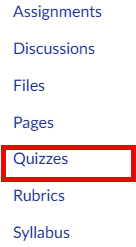
Open Quizzes from the course navigation menu.
-
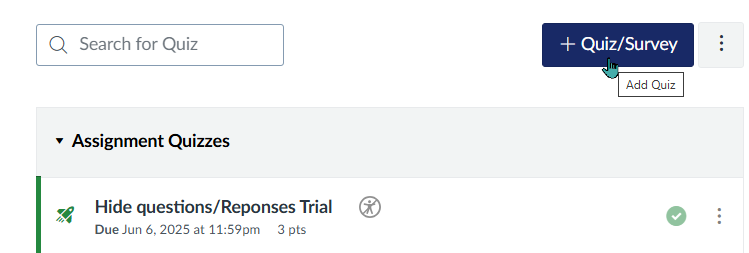
Select + Quiz/Survey.
-
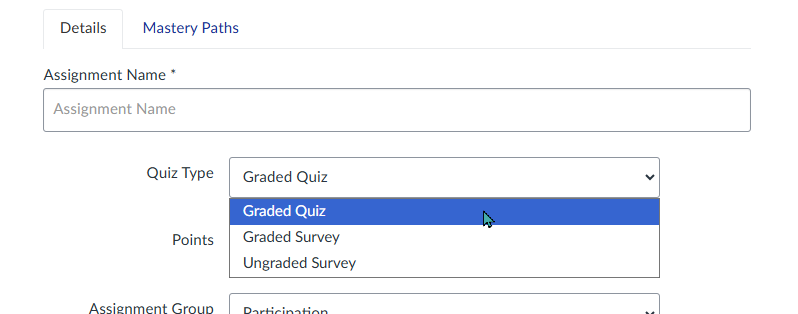
Choose the type of activity you want to create:
-
Graded Quiz – counts toward the course grade.
-
Graded Survey – collects feedback and awards points for participation.
-
Ungraded Survey – collects feedback without affecting grades.
-
-
Enter a name for the quiz and configure the assignment details, such as:
-
Points possible
-
Assignment group
-
Grade display options
-
Due and availability dates
-
-
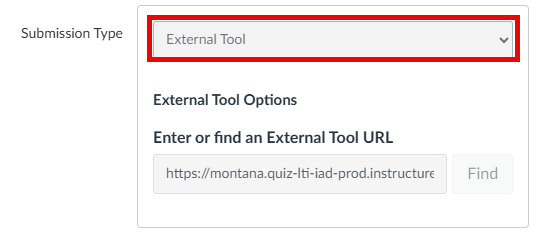
Review the submission type. New Quizzes use an external tool for submissions. This setting is locked, so no changes are needed—or possible.
-
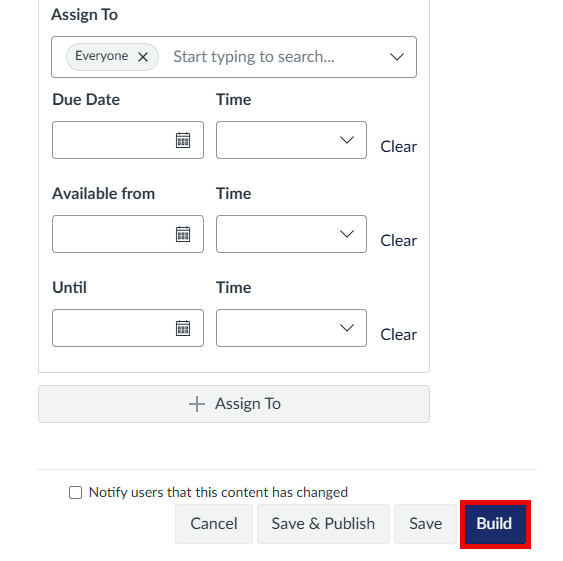
When you are done, click Save, Save & Publish, or Build to continue creating the quiz.
Build Quiz Questions
After saving the quiz, select Build to open the New Quizzes builder.
From the Build page, you can:
-
Create new questions
-
Add content from an Item Bank
-
Add stimulus content for groups of related questions
Available Question Types
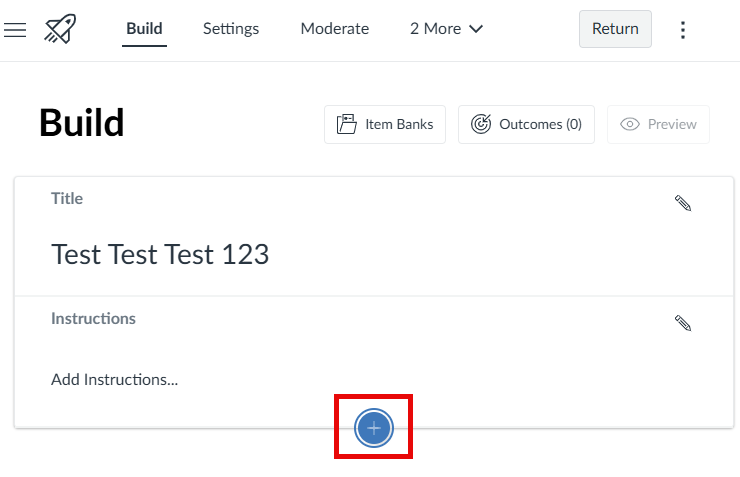
Click the blue plus sign in the middle of the page to add a question to the quiz. New Quizzes supports several question formats, including:
- Categorization
- Essay
- File Upload
- Fill in the Blank
- Formula
- Hot Spot
- Matching
- Multiple Answer
- Multiple Choice
- Numeric
- Ordering
- True or False
When creating a question, enter the prompt, configure answer choices or settings, and assign a point value.
Tip: Essay and File Upload questions require manual grading.
Organize Your Quiz
The Question Navigator provides an overview of all questions in the quiz. You can use it to:
-
Review question order
-
Check point values
-
Move questions by dragging and dropping them into a new position
Quiz Settings
You can adjust delivery settings for a quiz in New Quizzes. These settings control how students access and complete the quiz. Learn more using the Canvas tutorial, How do I manage settings for New Quizzes.
Moderate a Quiz
On the Moderate page, you can view student results and manage accommodations, attempts, and time limits. Quiz results also include a detailed log for each student. Learn more using the Canvas tutorial, How do I use the Moderate page in New Quizzes.
Return to Quizzes Page
To close your quiz and return to the Quizzes page, click the Return button.

Best Practices
-
Keep question wording clear and concise.
-
Use item banks when you want to vary questions between students or quiz attempts.
-
Preview quizzes before publishing.
-
Use low-stakes quizzes for practice or knowledge checks.
-
Review quiz settings carefully before students begin the assessment.