

Surveys in Canvas New Quizzes

Surveys in Canvas allow instructors to collect student feedback or responses without grading for correctness. Surveys can optionally award participation points and are useful for course feedback, reflections, or check-ins.
Create a New Survey
-
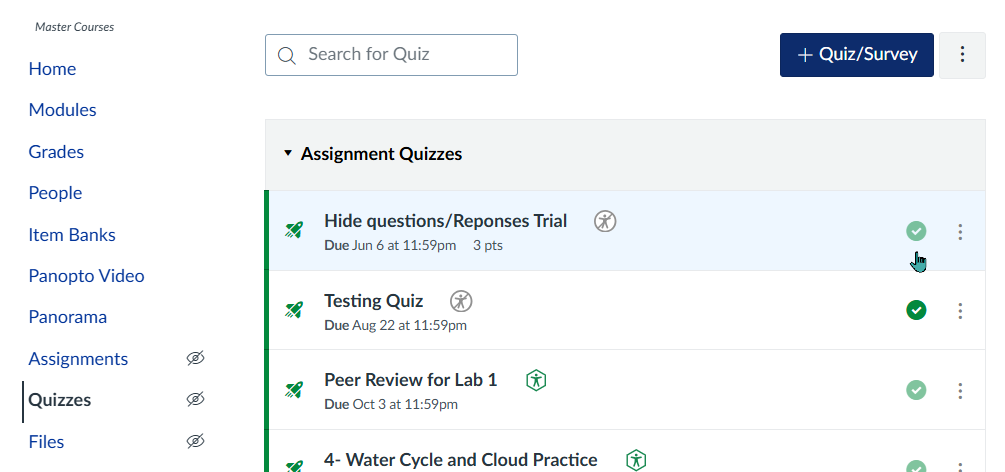
In your course, select Quizzes from the Course Navigation.
-
Click + Quiz/Survey
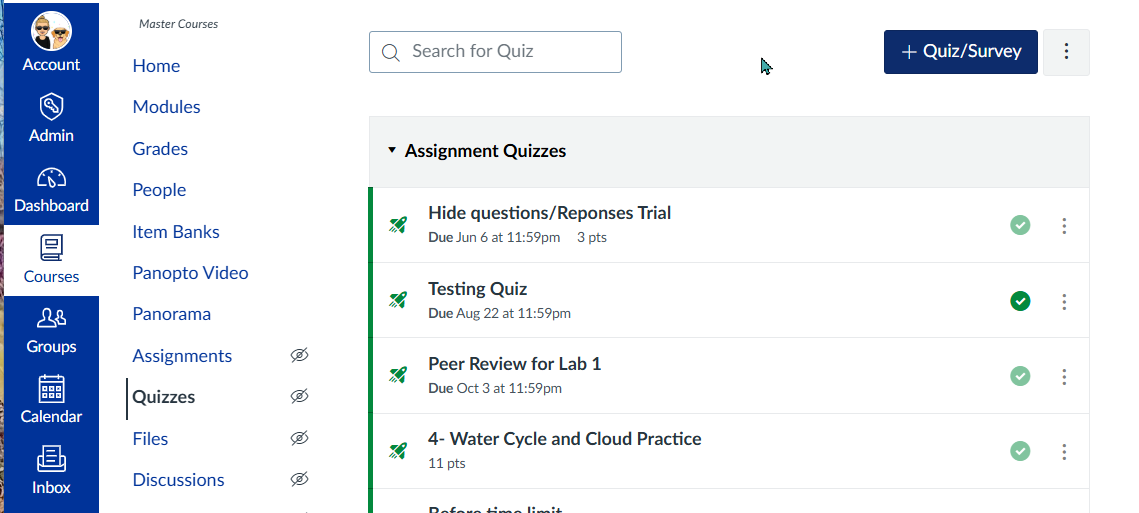
3. In the Quiz Type dropdown, select either graded or ungraded survey
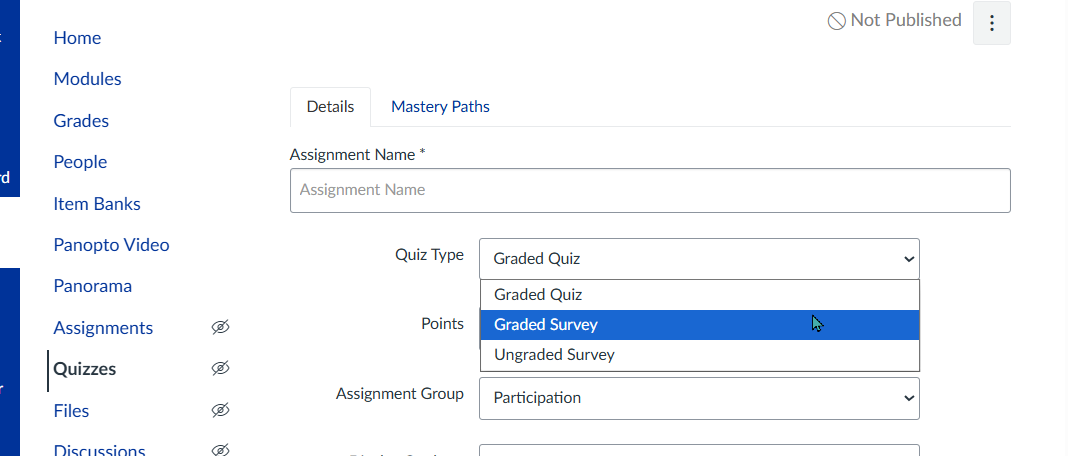
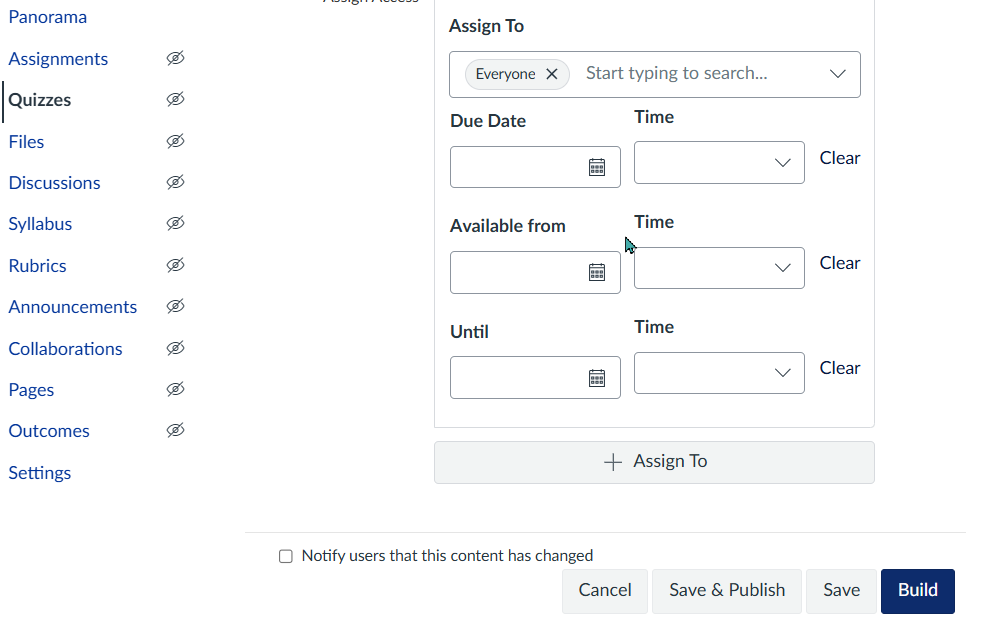
4. Continue filling in the rest of the details for the survey (ex. points, anonymity, assign to)
5. Click Build at the bottom to add questions or Save to come back to the survey
Add Survey Questions
- Once in the build area, select the blue + sign to add questions
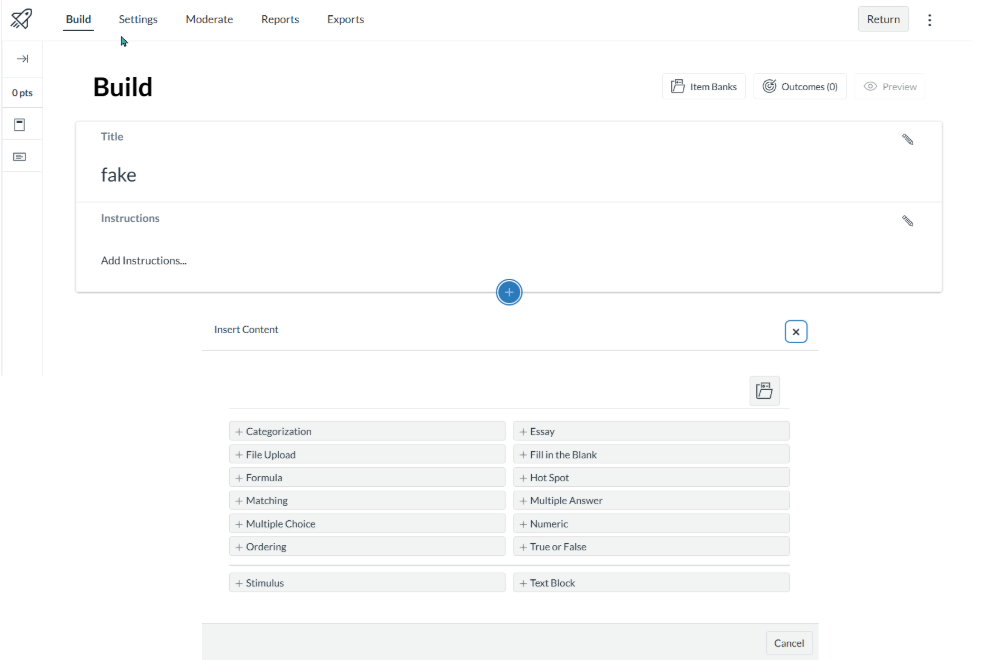
2. Choose the question type that best fits your survey, such as:
-
-
Multiple Choice
-
Multiple Answer
- Fill in the Blank
-
Essay
-
True or False
-
3. Enter the question text and response options or use an Item Bank (LINK) to add questions
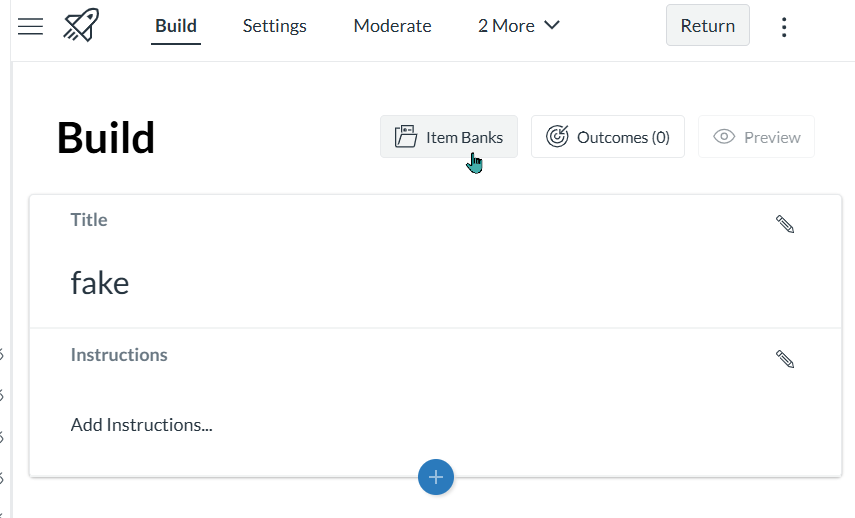
4. Repeat these steps for each survey question.
5. Quiz questions will save automatically
Publish Survey
- Once you are ready for students to see and take the survey, don't forget to publish it
Important Notes
-
Survey responses can be viewed in SpeedGrader or from the survey results page.
-
Responses may also be downloaded for review or reporting.
-
Surveys will not evaluate correct or incorrect answers for essay questions
-
Participation points are optional
-
Item Banks can be used to reuse survey questions across courses but do not use the Item Bank questions for repeated questions in the same quiz