

Office 365 Installation for Mac
To install Office 365 for Mac
- Uninstall any version of Office currently on your computer (see Office Uninstall Instructions for Mac for assistance).
- Go to m365.cloud.microsoft/apps.
- Enter your NetID@msu.montana.edu for faculty/staff/student workers or NetID@student.montana.edu for students.
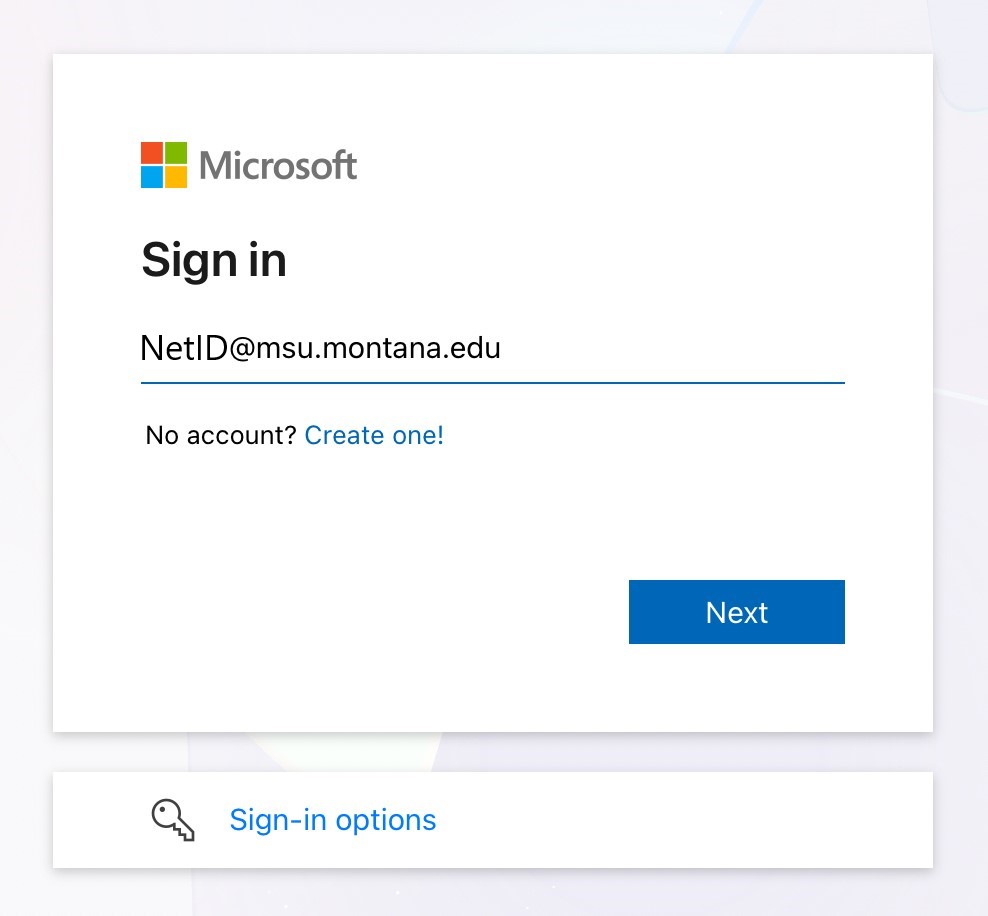
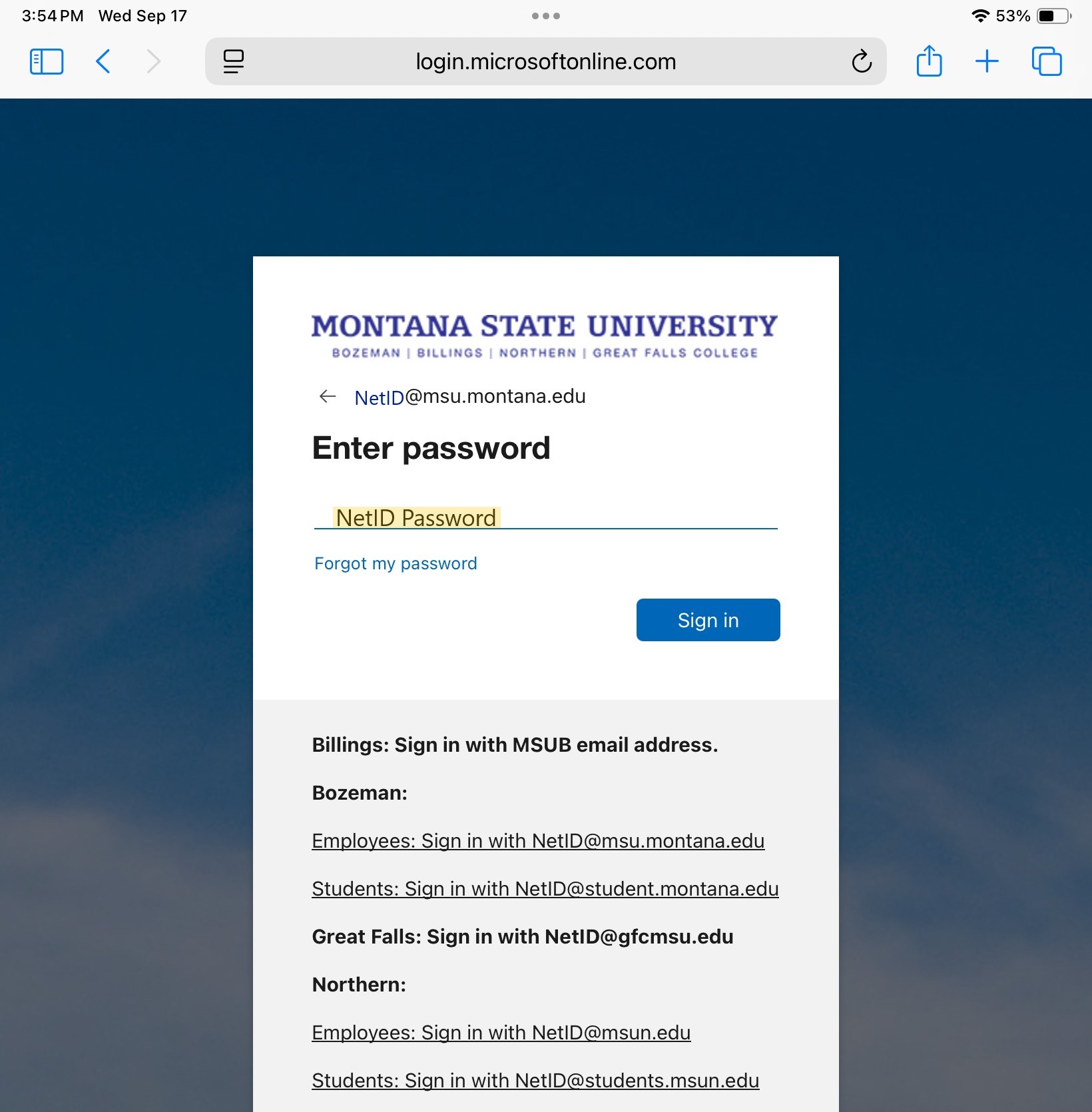
You will be redirected to MSU's login page. - Enter your NetID@msu.montana.edu or NetID@student.montana.edu and NetID password.
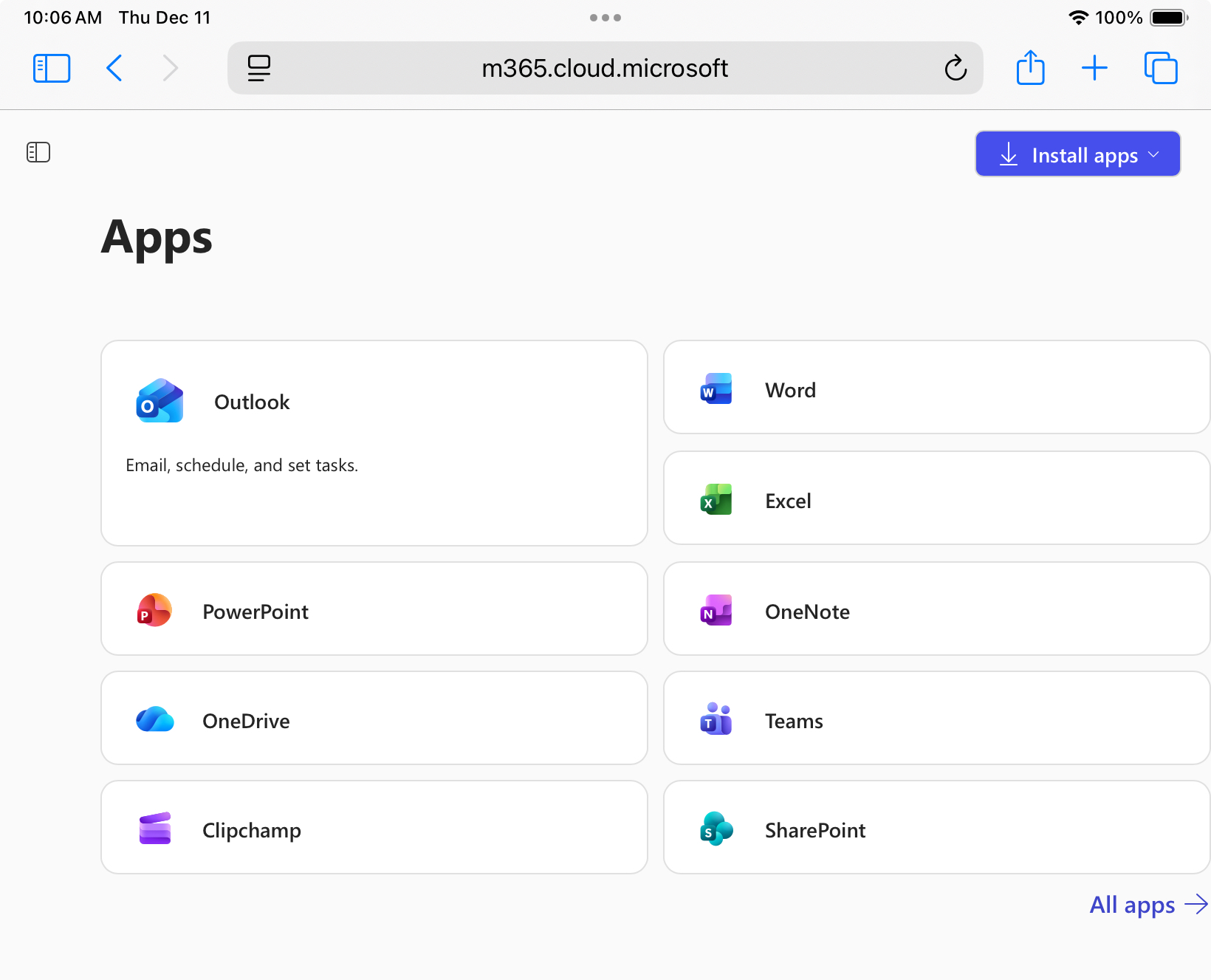
- You are now logged in to your Microsoft 365 Account and will be directed to the Apps
page.
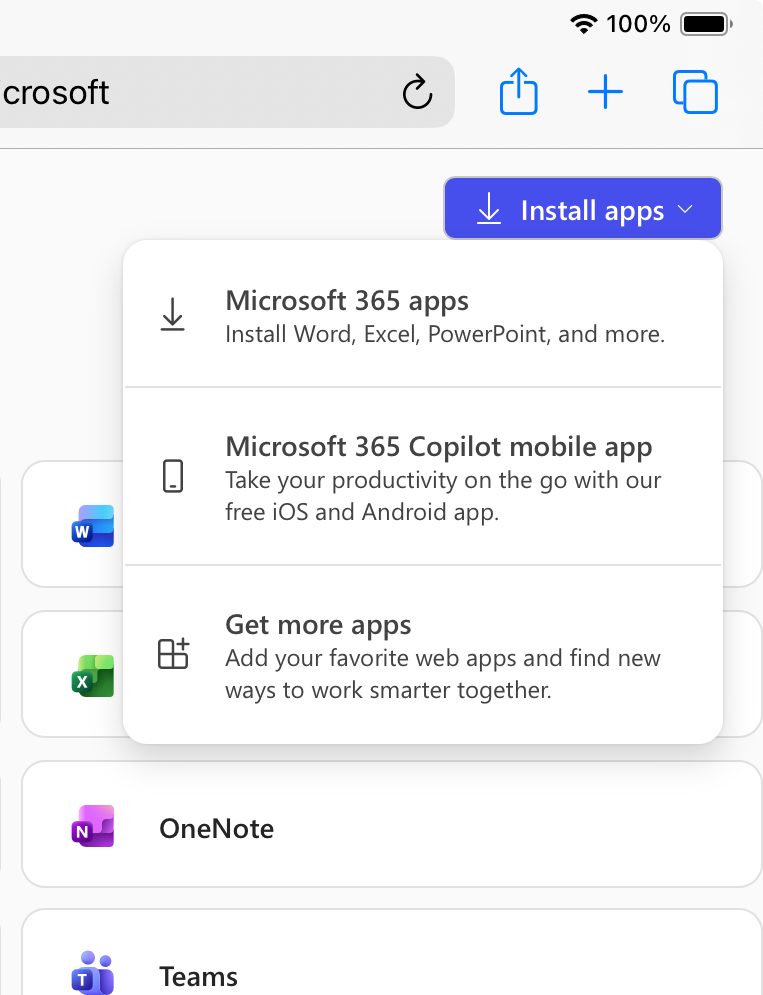
- Click the Install Apps drop-down button at the top right corner of the page, then Microsoft 365 apps at the top of the list. The button may be a different color if you have selected a theme other than the default.
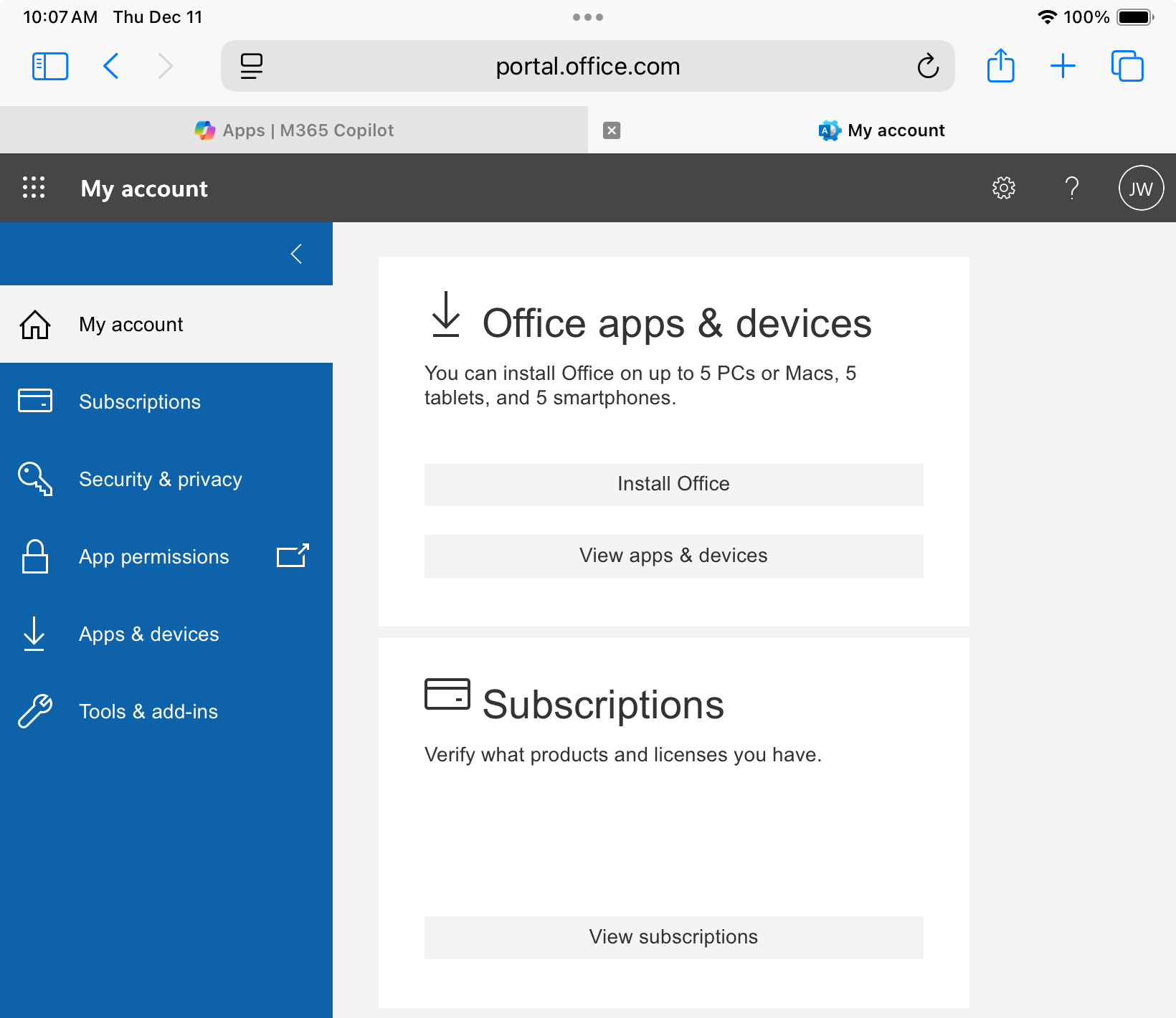
- You will be taken to your account page. Under Office apps & devices, select Install Office.
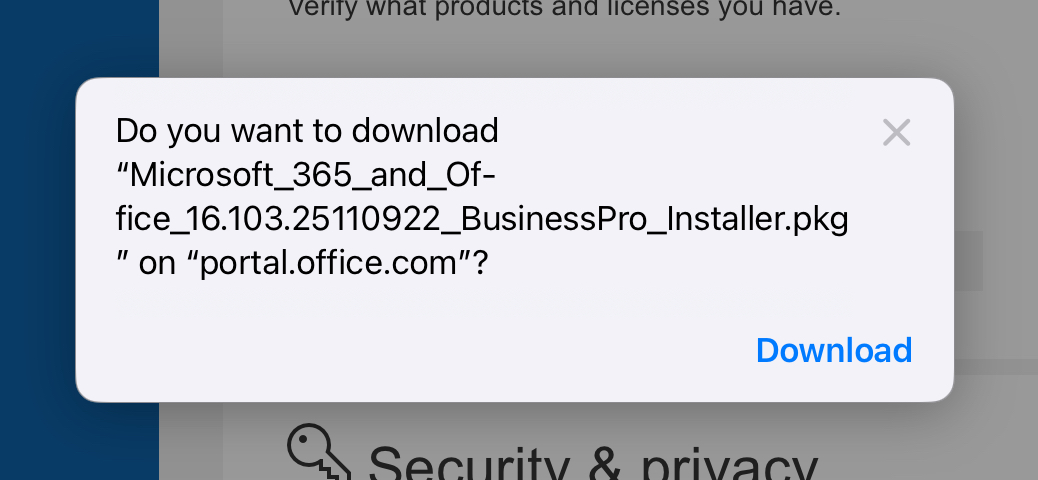
- A pop-up may appear asking if you want to download the installation file; if so click
the Download button. If not, it should be automatically downloading.
The install file will begin downloading. Be patient as this can take awhile. A wired connection on campus takes around 5 minutes, a wireless connection will take quite a bit longer.
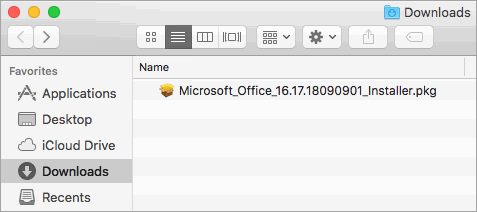
Once download is complete: - Open the Downloads folder and double-click on Microsoft_365_and_Office_Installer.pkg.
Your Dowload could look different depending on what device you are using.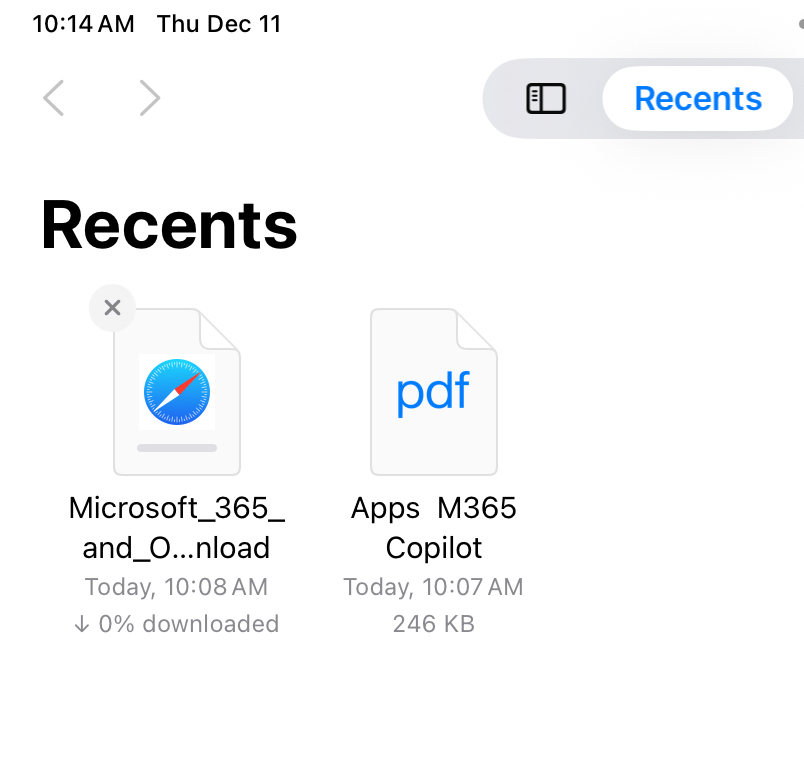
The Office 365 for Mac Installer window will open. - On the first page of the Installer pop-up, click the Continue button.
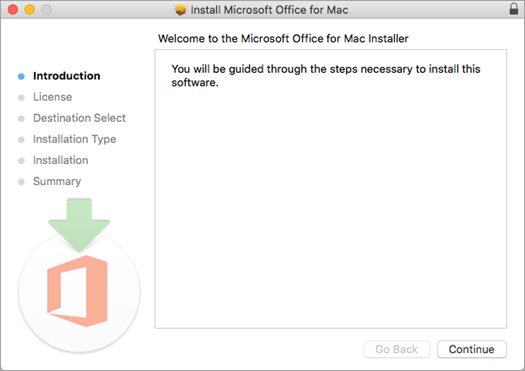
- Click Continue again and then review and Agree to the terms of the software license.
- Choose how you want to install Microsoft 365 and click Continue.
- Review the disk space requirements or change your install location, and then click
Install.
Note: If you want to only install specific Microsoft 365 apps and not the entire suite, click the Customize button and uncheck the programs you don't want. - Click the Install button.
- Enter your computer's password and then click the Install Software button.

The install process will begin. Although it says it may take 30 minutes, it generally takes about 5. - Click the Close button when the installation is complete.
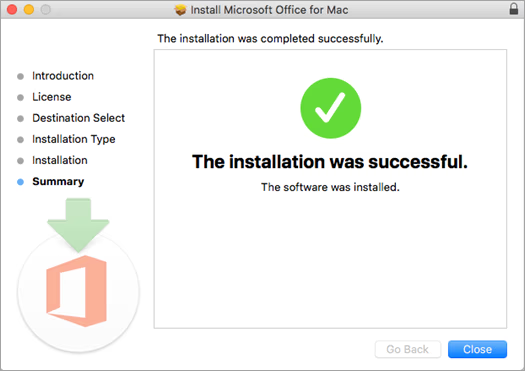
If Microsoft 365 installation fails, see What to try if you can't install or activate Office for Mac.
You are ready to use Office for Mac. Go to the Applications folder to open programs.