

SharePoint Online
IMPORTANT:
When you separate from MSU, your OneDrive and SharePoint access is immediately disabled.
Your data will be accessible for 30 days, but only by people whom you have shared
it with. After 30 days, the data will be deleted and cannot be recovered.
Visit What Happens After I Leave MSU? for more detailed information.
General Information
SharePoint Online is a cloud file storage service and collaboration tool offering 1TB of space per SharePoint site, for Group Shared Data and MSU Owned Data that needs to stay at MSU if you separated from MSU, that does not contain sensitive data. SharePoint Online is available to all MSU faculty, staff, and students.
It is valuable to use for shared work files such as:
- Files being edited by a team
- Files stored in a Microsoft Teams, Team
- Shared research
Public vs Private sites provide specialized permissions for who in an organization (MSU in this case) can access a site.
- Personal Work Files meant to be accessed by a team or groups of users.
- Personal materials not associated with MSU work.
- Material required to be saved on confidential servers like Knox
- To choose the right location for the data you need to store, please refer to the table found on MSU's Data Standards and Procedures
- Data does not disappear if you leave MSU.
- Access and share files from a browser, your desktop, or mobile device.
- SharePoint reduces the reliance on email and therefore reduces email overload.
- By allowing web-based access, SharePoint Online eliminates the need to email files to yourself or download copies.
- Users can access their Shared Group Data via the web without having to use a VPN to log into their desktop.
- Have a schedule for reviewing and cleaning your SharePoint Documents.
- University records and information must be managed no matter where they are kept. Do not allow any system or repository to become a dumping ground for files!
- When using Office 365 tools, access must be actively managed and reviewed on an ongoing basis. Updating access when changes to unit staffing occurs is critical.
Protecting MSU Information in SharePoint
Not all SharePoint sites are private by default. Before storing MSU information, verify who can access your site. Team Sites and Communication Sites use different sharing models and may expose content more broadly than intended if access settings are not reviewed.
It's also important to stay up to date on all of MSU's Data Standards and Procedures to ensure your data stays as secure as possible.
Public vs Private Sites
Team Sites support a Public or Private privacy setting.
Private sites are only accessible to approved members. Public sites allow anyone at MSU to view the site and its content.
- Select Settings > Site Information.
- Review the Privacy settings value.
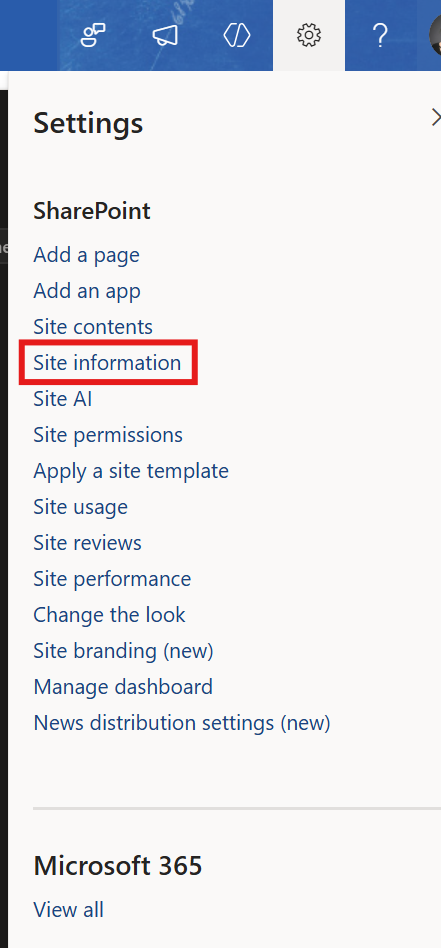
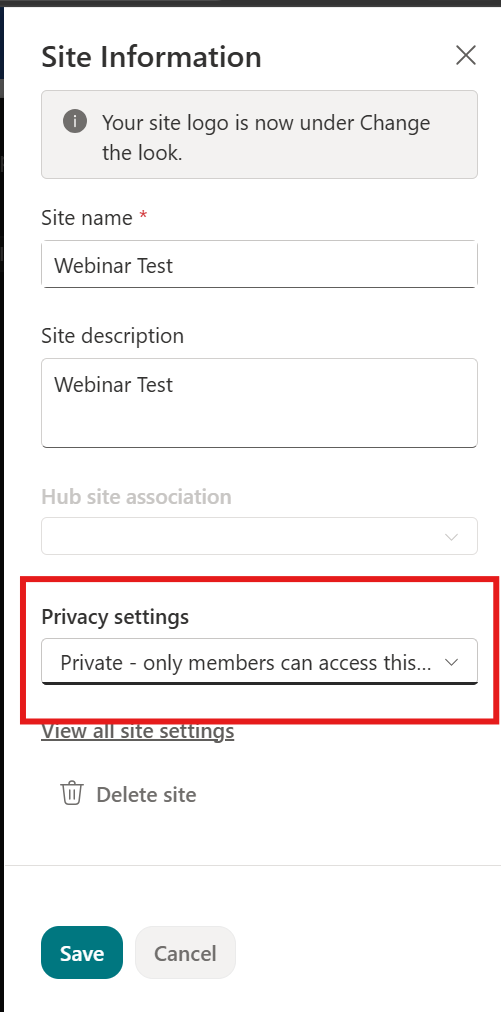
- Change the site to Private if access should be limited to site members.
Communication Sites
A communication site is to share news and information with a broad audience, where most users have read-only access. Access is still contained within the University unless guest access is allowed. You can find this process on our How To page for externally sharing in SharePoint and OneDrive.
Communication sites aren't connected to Microsoft 365 groups and use the standard SharePoint permissions groups:
- Owners
- Members
- Visitors
Normally with communication sites, you'll have one or more owners, a relatively small number of members who create the content for the site, and a large number of visitors who are the people you're sharing information with.
Learn more on Microsoft's Communication Site learning page.
Choose the Right Site Type
|
Team Site
|
Communication Site
|
|---|---|
|
Best for:
Team Sites are designed for collaboration among a defined group of people and support Public or Private privacy settings. |
Best for:
Communication Sites do not provide the same Public/Private setting found on Team Sites. Access is managed through SharePoint permissions. |
Visit this handy article on choosing between SharePoint site types to help determine which type to create for your individual purposes.
Review Site Access
If you already have a SharePoint site, periodically review access to ensure information is only available to the intended audience.
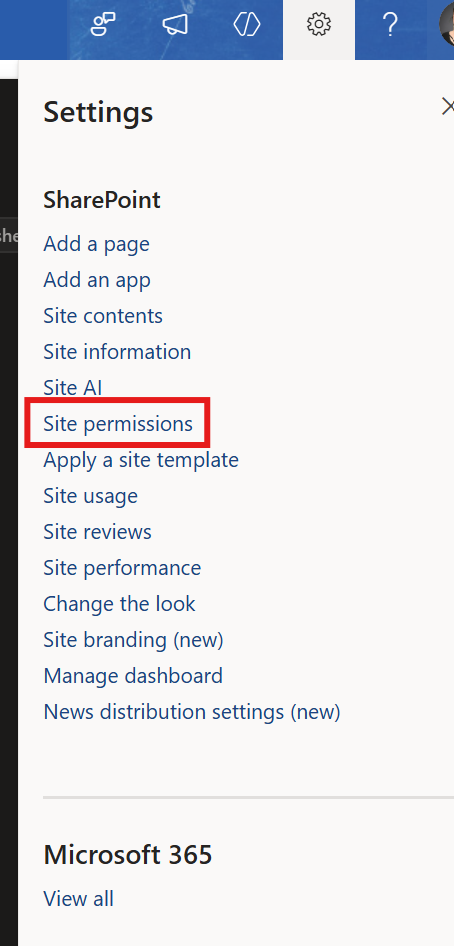
- Open your SharePoint site.
- Select Settings (gear icon).
- Select Site Permissions.
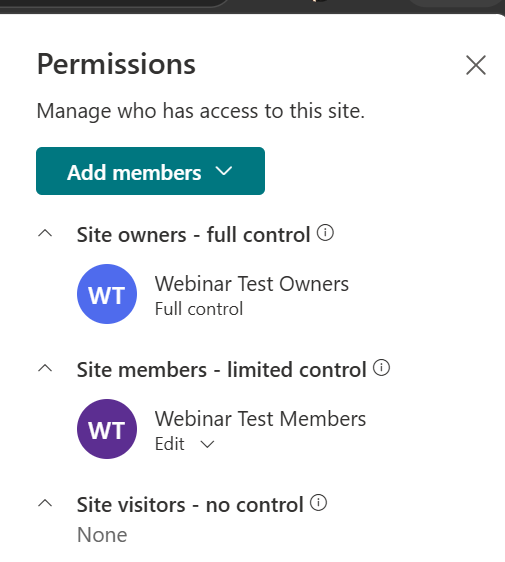
- Review the users and groups that currently have access to the site.
External Sharing via SharePoint or OneDrive
To share externally through OneDrive or SharePoint to users outside of MSU, they will need to use a One-Time-Password to authenticate and create a Guest account. You can find this process on our How To page for externally sharing in SharePoint and OneDrive.
Security Note
Always refer to MSU's Data Standards and Procedures to ensure the storage location is appropriate for the data you are storing.
The classification of MSU information should determine where it is stored and who should have access to it. After selecting an appropriate storage location, review site permissions regularly to ensure access remains limited to the intended audience.
Remember
A SharePoint site is only as private as its permissions. Review site access regularly, verify who has access, and confirm the site is appropriate for the information being stored before uploading sensitive or internal content.
Data management best practices ensure data quality, accuracy, and security, enabling efficient and compliant operations while reducing risks and costs. They support better decision-making, collaboration, and scalability, and provide a foundation for innovation and effective disaster recovery. Frind more information on Data Managment Best Practices here: https://www.montana.edu/uit/security/datamanagement/index.html
A SharePoint is many things to many people. Here are the two most common.
- Collaboration Center
- Show important visuals, news, and updates with a team or communication site
- Shared Document Library
- Sync and store your files in the cloud so anyone can securely work with you.
SharePoint sites sync to the cloud providing easy, secure access from anywhere.
With SharePoint you can share and collaborate with your internal team, external guests, specific people as well as provide access via a link with an expiration date.
*SharePoint Sites, including Shared Document Libraries are automatically created when a Microsoft Team is created.
How-To
Training Materials

FAQ