

How To: Sharing Externally in SharePoint and OneDrive
To share externally through OneDrive or SharePoint to users outside of MSU, they will need to use a One-Time-Password to authenticate and create a Guest account. You can find this process below.
NOTE: Due toabehind-the-scenesupdate from Microsoftcoming in October, 2026,there may be a slight interruption insharingtoexternalusersthrough OneDrive and SharePointvia the One-Time-Password process.If guests have issues viewing shared files, folders, etc.that they previously had access to, resharethe item(s)to reapplytotheir guest account.If issues persist, please contact the Service Desk.
Sharing a SharePoint file or folder with an external, (non-MSU) entity
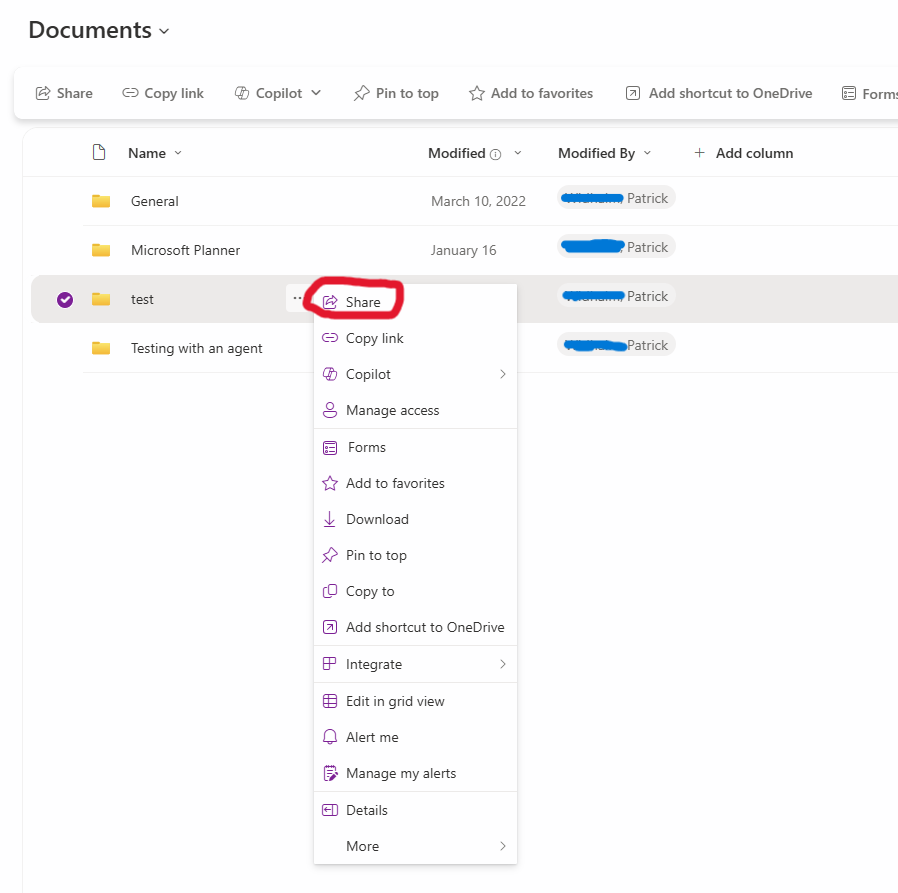
- In the SharePoint folder, click on the three dots and select “Share”
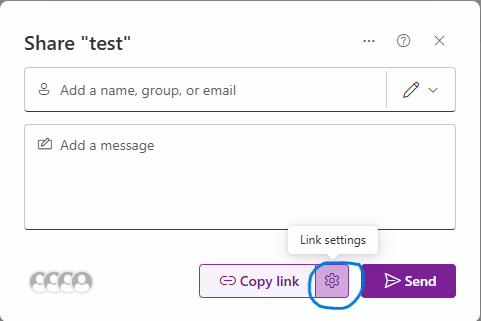
- Click on the Gear Icon next to the “Copy Link” button
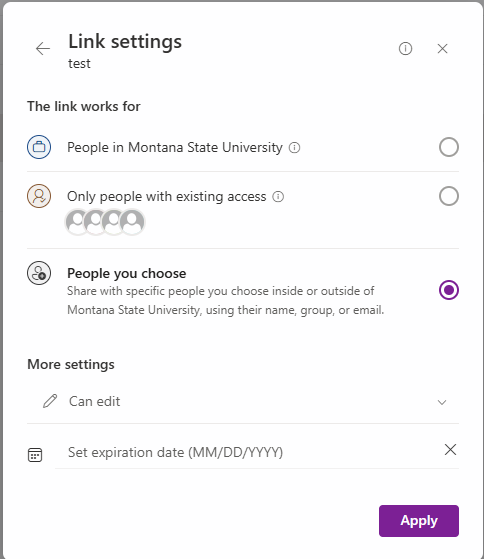
- Select “People you choose”
-
Change permissions as needed for “Can Edit”, “Can View”, or “Can’t Download” (which is view only also)
-
Set Expiration is recommended also to prevent stale permissions.
-
- Once set, click “Apply”
- Add the email address of the person(s) you would like to share the file or folder
with
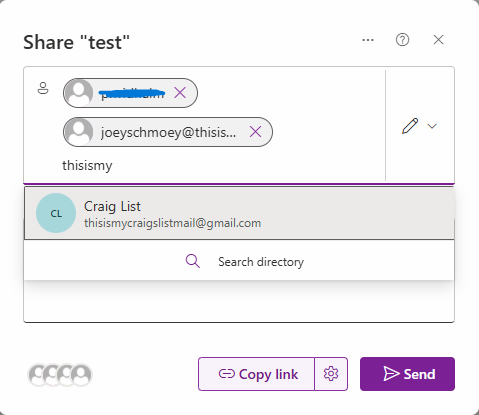
- Once you have all the email addresses listed, you can choose to either “Send”, or
“Copy Link”. It works well to type a message in the box and click send directly from
here
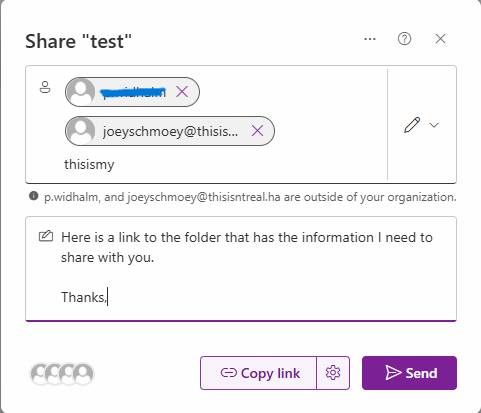
- You will see a confirmation

- On the recipient's end, they will see the following message:
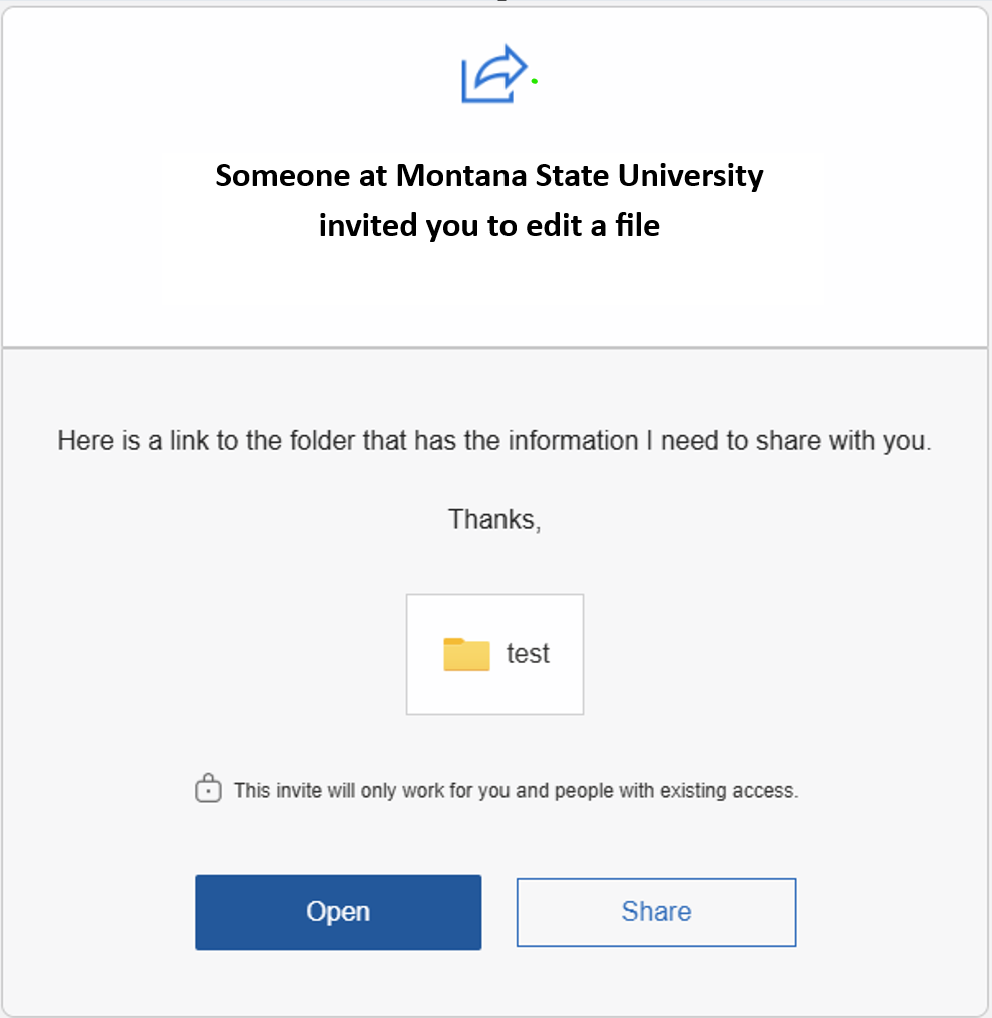
- The recipient should select the "Open" button. They will be redirected to a sign in
page.
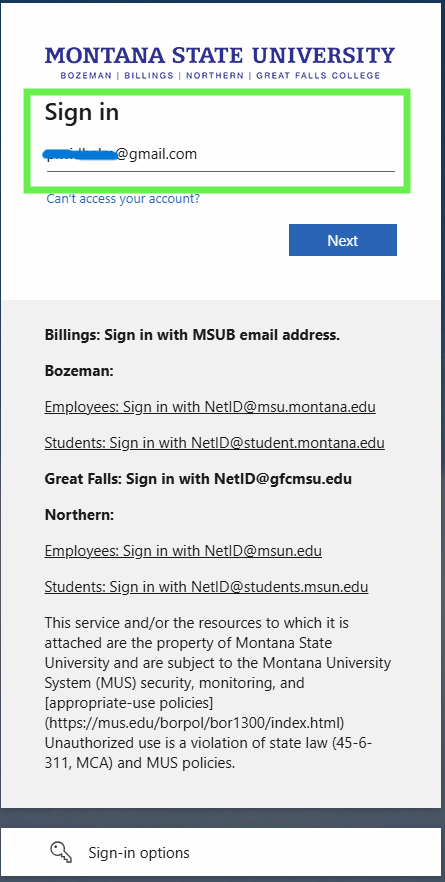
- IMPORTANT: the recipients needs to enter the same email address that received the invitation
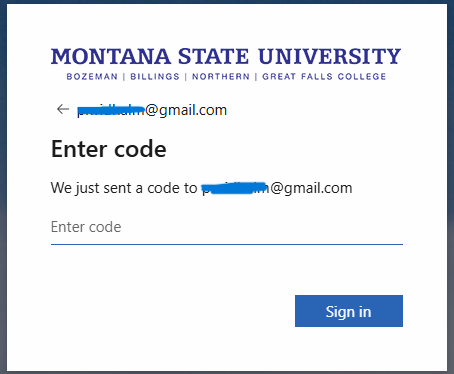
- The recipient will get an email containing an account verification code (thei One-Time-Password)
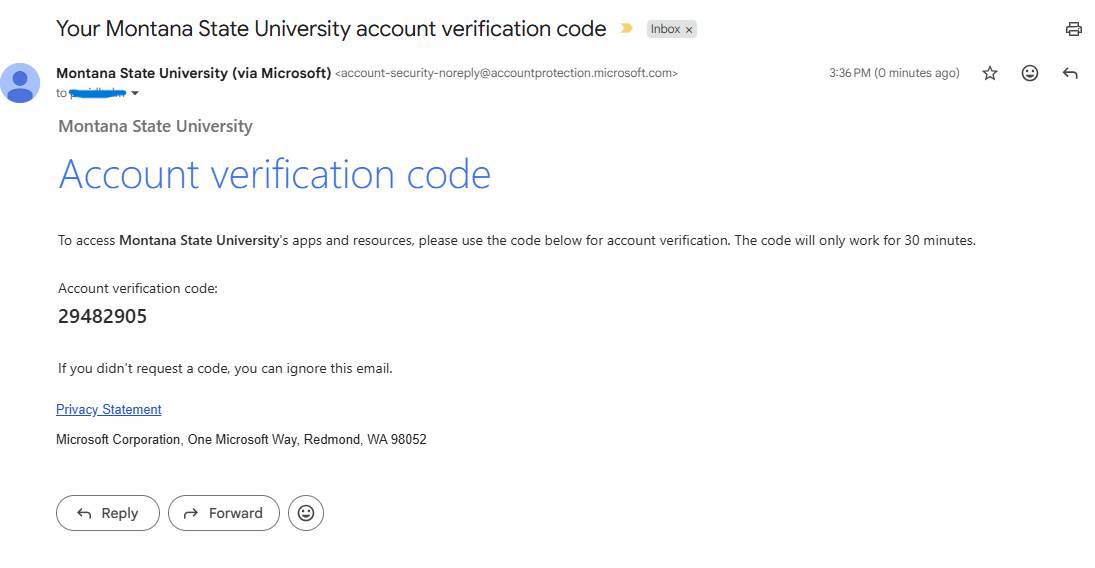
- The recipient enters their verification code
- They now have access to the shared files